

The Basics: What is Peppol and how does it work?
Peppol is a global network and set of technical standards that allows organisations to exchange structured electronic business documents, such as eInvoices and orders, securely across borders.
Peppol operates using a four-corner model, which separates business systems from network infrastructure:
- Corner 1 (C1) – the sending business or end user.
- Corner 2 (C2) – the sender’s Access Point (AP) provider.
- Corner 3 (C3) – the receiver’s Access Point provider.
- Corner 4 (C4) – the receiving business or end user.
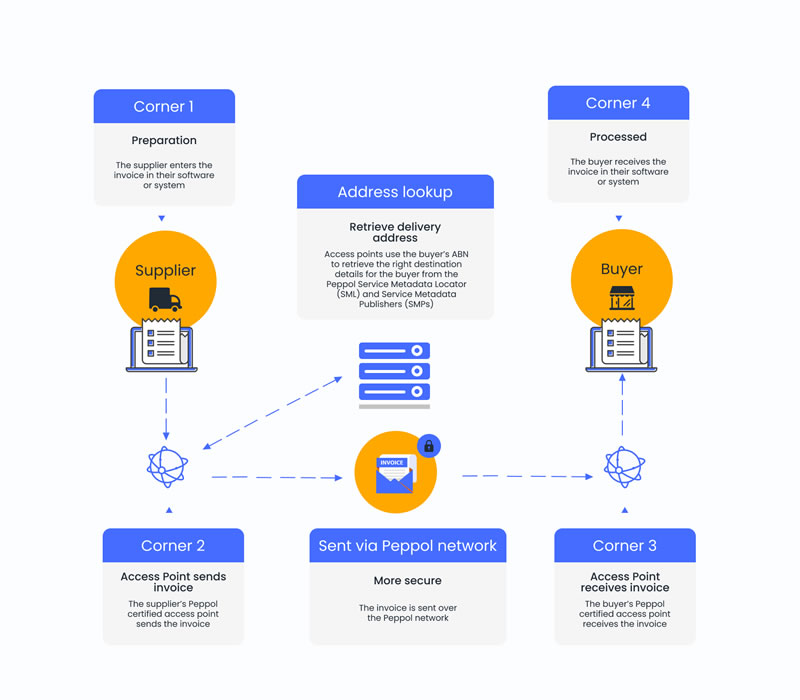
Figure 1: High‑level Peppol invoice processing flow from supplier to buyer using the four‑corner model.
How an invoice is delivered via the Peppol network:
- The sender generates a Peppol-compliant XML invoice.
- The invoice is sent to the sender’s Access Point.
- The sending Access Point looks up the receiver’s details in the Peppol directory (SML/SMP).
- The invoice is securely transmitted to the receiver’s Access Point.
- The receiver’s Access Point delivers it to the receiver’s system.
This model means each participant integrates once, with their chosen Access Point, and can then exchange documents with any other Peppol participant worldwide.
The Basics: What does Tickstar do in the Peppol network?
Tickstar provides the core infrastructure services that connect businesses to the Peppol network, including:
- Accredited Peppol Access Point services (multi-region)
- Hosted Peppol SMP services
- White-label Access Point infrastructure
- APIs for sending, receiving, validation, lookups and participant management
Tickstar can act as:
- Your Peppol Access Point (AP): You connect to the Peppol network using Tickstar’s AP accreditation and certificates.
- White-label backend: You operate your own Certified Access Point using Tickstar infrastructure.
- SMP provider only: For organisations already running their own Access Point and needing an SMP.
This diagram shows where Tickstar fits in the Peppol architecture:

Figure 2: System architecture showing business software (C1/C4), Access Points (C2/C3), SML and SMP. Tickstar operates the AP and SMP components.
For most Tickstar customers, we are your Access Point, meaning you integrate your software with Tickstar, and we handle Peppol connectivity, validation and certificates.
Alternatively, if you operate your own network/service, we can be the white-label backend that makes you an Access Point provider to your own customers.
The Basics: Peppol glossary – What do terms like AP, SMP and SML mean?
Some key Peppol terms explained:
Access Point (AP) – A service (like Tickstar) that sends and receives Peppol documents for businesses. It acts as the technical “gateway” that connects organisations to the Peppol network.
AS4 – The secure messaging protocol used by all Access Points to exchange documents over the Peppol network.
Peppol BIS (Business Interoperability Specifications) – The official Peppol document standards that define how business documents (such as invoices) must be structured, for example Billing 3.0.
Peppol Participant / Participant ID – The unique address used to identify a business or organisation on the Peppol network.
SBDH (Standard Business Document Header) – A standard digital “envelope” that wraps the business document and carries key routing and identification details.
Service Metadata Locator (SML) – The central directory that tells sending Access Points where to find a recipient’s details. It points to the correct SMP for each Participant ID.
Service Metadata Publisher (SMP) – A registry that stores information about a participant, including:
- Their Peppol Participant ID
- Which document types they can receive
- Which Access Point should receive documents for them
SMK – The test version of the SML, used in trial and testing environments instead of live production systems.For a full list of terms, see our complete Peppol and eInvoicing glossary.
The Basics: What’s the difference between the SML and SMK networks?
Peppol operates two separate environments:
| Environment | Purpose | Directory | Certificates |
| SMK (Test) | Testing & development | SMK | Test certificates |
| SML (Production) | Live transactions | SML | Production certificates |
Key differences
- Trial/Test (SMK): Safe sandbox for testing integration, validation, routing and error handling.
- Production (SML): Live commercial transactions visible globally.
The Basics: What is the difference between Trial, Test and Production environments?
Trial and Test environments use the SMK, connect to sandbox endpoints and require test credentials. They are used for testing only and do not involve real business transactions.
The Production environment uses the SML, connects to live endpoints and requires production certificates. It is used for real business traffic and live transactions.
The Basics: What is an SMP? Do I need one?
An SMP (Service Metadata Publisher) is a directory service used by the Peppol network to find where documents should be delivered.
For each participant, the SMP stores:
- Their Peppol Participant ID
- The document types they can receive (for example, invoices, orders)
- The Access Point endpoint(s) that should receive those documents
In simple terms, the SMP tells the network who can receive what, and where to send it.
Note: you need an SMP if you want to receive Peppol documents.
Without an SMP record:
- Other Access Points cannot find your participants
- Documents cannot be routed or delivered
- Even if your Access Point is live, you will not receive anything
You do not need to register on an SMP if you only send documents.
What to consider when choosing an SMP
When selecting an SMP, consider:
- Reliability and uptime: SMP outages block inbound traffic
- Automation support: API access for participant onboarding
- Scalability: ability to support high volumes of participants
- Ease of management: UI and tooling for operations teams
- Compliance: alignment with Peppol authority requirements
For SaaS platforms and large service providers, automation is especially important, as onboarding and updating participants manually does not scale.
How Tickstar supports SMP services
Tickstar provides:
- A fully hosted SMP service for both production and test
- An SMP Manager API, which allows:
- Automated participant creation and updates
- Integration into your own onboarding workflows
- Self-service enablement for customers
This makes Tickstar’s SMP suitable for SaaS vendors, platform providers and white-label Access Point customers.
Need an SMP? Contact Tickstar today to get started.
Onboarding: How do I get started with a Tickstar trial account?
A Tickstar trial lets you test Peppol connectivity in a safe sandbox environment before going live, so you can:
- Learn the Peppol four‑corner model by sending real test transactions in the Peppol Test Network (SMK).
- Integrate with the Tickstar Access Point via the Transaction API or SFTP.
- Explore the Management Portal (Cockpit UI), SMP UI, Validator and Participant Lookup.
How to get started:
- Request a free trial via https://www.tickstar.com/freesignup/
- Receive:
- Test Access Point
- SMP access
- API credentials
- Build and submit your first Peppol-compliant document.
- Send it to Tickstar via the Transaction API.
- Inspect transaction states, validation results and round‑trip flows.
A Tickstar trial is the ideal opportunity to:
- Finalise mapping from your internal data model to Peppol schemas.
- Decide how you’ll handle ACK/NACKs and internal logging.
- Try out Participant Lookup and SMP registration for your own pilot participants.
Onboarding: How can I verify that my integration is working correctly before launch?
A good pre-go-live checklist should cover the following areas:
1. Validate schemas and business rules
- Use Tickstar’s Validator UI or API to test sample documents.
- Fix all errors and review any warnings.
2. Run end-to-end test transactions (in SMK)
- Send documents through your full system flow to the Tickstar Test Access Point.
- Where possible, run round-trip tests, where you:
- Send a document, and
- Receive it back yourself as the receiver.
- Confirm:
- Transaction state flow PROCESSING → COMPLETED → ACKNOWLEDGED.
- Status SUCCESSFUL.
3. Test error handling
- Send an intentionally invalid document.
- Confirm:
- It is rejected early with a NACK or FAILED status.
- Your system logs and displays the failure correctly.
4. Check participant registration
- Make sure your receiving participants are correctly registered in SMP and SMK.
- Use Participant Lookup to confirm registration and capabilities.
5. Verify receiving workflows (if you receive documents)
- Confirm inbound documents appear correctly in your internal systems.
- Confirm you acknowledge them correctly, if using API-based delivery.
6. Run an operational walkthrough
- Practice handling a FAILED transaction:
- Locate validation artefacts.
- Check error codes.
- Follow internal runbooks.
Final step before launch
Once everything is stable in Test /SMK:
- Move your configuration to Production / SML
- Repeat a small set of these tests at low volume before going live
Onboarding: How do we get our own Peppol Access Point?
Tickstar makes getting your own Access Point simple by handling the technical setup, accreditation testing and certification process for you.
Your options:
1. SMP service only
If you already operate an Access Point, then you only need to register participants and manage Peppol metadata. You can use Tickstar’s SMP service.
2. Become a Peppol Access Point provider (white-label service)
If you want to operate your own Certified Peppol Access Point, Tickstar can fully host and manage it for you, including:
- Peppol accreditation testing
- Certificate handling
- Infrastructure setup
- Go-live support
3. Use Tickstar’s Accredited Peppol Access Point services
You can operate using Tickstar as your Access Point including our certification and security certificates. This includes:
- Peppol governance managed by Tickstar
- Speed to market
- Go-live support
Alternatively, you can set up an Access Point yourself, however this process is quite complex and requires you to:
- Become an OpenPeppol member
- Sign a Peppol Transport Infrastructure Agreement (TIA)
- Conduct due diligence checks
- Demonstrate technical and security competency through testing
- Request a Public Key Infrastructure (PKI) Certificate
- Handle ongoing maintenance and support
Generally, setting up your own Access Point is only suitable for:
- Big businesses with a large number of eInvoice or e-procurement related transactions
- VAN operators/Service providers
- ERP vendors looking to connect their software package to the Peppol network.
The process usually takes several months if you have access to experienced resources, and only after this can you begin to transact on the Peppol network. Learn more about setting up your own Access Point.
Not sure which option is right for you? Contact Tickstar for support.
Participants: How can I check if an organisation is registered on Peppol?
You can check this using the Participant Lookup feature:
- Find the receiver’s Peppol Participant ID (if they have shared it), or their national identifier (ABN in Australia, for example).
- Use one of these lookup tools:
- Tickstar’s Participant Lookup UI
- Use the Participant Lookup API
- Use the Peppol Directory
- Enter the scheme and identifier (for example, ABN + the organisation’s number).
- Check the results:
- If the organisation is registered, you will see:
- The document types they can receive or send
- The Access Point(s) they use
- Which SMP hosts their profile
- If no result is returned:
- They may not be registered, or
- They may be registered using a different identifier or scheme.
- If the organisation is registered, you will see:
This process also lets you confirm whether a trading partner is “Peppol enabled” before onboarding them.
Participants: What is a Peppol Participant ID, and how do the formats work?
A Peppol Participant ID is the unique address that identifies an organisation on the Peppol network. It tells other systems exactly who is sending or receiving documents.
It is made up of two parts:
- An ISO 6523 Interchange Control Directory (ICD) code – this shows which identifier scheme (type of identifier) is being used.
- The organisation’s identifier within that scheme.
The format for a Peppol Participant ID is as follows:
<ISO 6523 code>:<identifier value>
Examples:
- 0007:5567212047 – Swedish organisation number
- 0088:7365567212048 – Global Location Number (GLN)
- 0151:<ABN> – Australian Business Number (ABN)-based ID (example only)
Guidelines:
- Use the identifier scheme recommended by your local Peppol authority (for example, ABN in Australia, UEN in Singapore).
- Make sure the identifier is correct and active.
- Use the same Participant ID everywhere, including:
- Your SMP profile
- Your SBDH sender and receiver IDs
- Participant lookup
Participants: How do I register a new participant using the SMP UI or Manager API?
You can onboard new participants in two ways: using the SMP user interface (UI) or the SMP Manager API.
A. Using the SMP UI (Management Portal)
Best for manual setup or low-volume onboarding.
Steps:
- Log in to the Tickstar Management Portal.
- Go to SMP & Participants.
- Click Add Participant.
- Enter the required details:
- Participant ID (for example: 0007:5567212047)
- Name and description
- Langauage (of name)
- Country Code
- Configure document capabilities:
- Add the document types the participant can receive (for example, BIS Billing 3.0).
- For each document type, select the Access Point endpoint that will receive it.
- Enable the SML/SMK toggle:
- Use SMK for test
- Use SML for production
Turn this on when you are ready for the participant to be discoverable on the Peppol network.
- Save and confirm the setup.
B. Using the SMP Manager API
Best for SaaS providers and large networks. With this approach, you integrate your system directly with the SMP Manager API.
When a new customer enables Peppol in your product, your system:
- Generates or collects their Peppol Participant ID.
- Sends an API request to create the participant record.
- Configures:
- Supported document types, and
- The receiving Access Point endpoints.
- Activates SMK or SML when ready.
- Optionally shows status in your own UI (for example: “Peppol registration active”).
This approach is ideal for self-service onboarding, where customers never need to access the SMP UI directly.Learn more about Peppol documents in Tickstar SMP.
Participants: How can a participant use different APs to receive different documents?
Peppol allows a participant to use more than one Access Point (AP) to receive different document types.
For example, a participant might:
- Use AP1 to receive invoices
- Use you (AP2) to receive orders
Because a Peppol participant can only be registered in one SMP, the first Access Point (AP1) that registered them controls their SMP entry.
If you discover that the participant you are trying to register in the Tickstar SMP is already registered by another provider (AP1), you cannot create a new SMP entry. Instead, AP1 must add your Access Point (AP2) details to their existing SMP record.
What you (AP2) need to do
You must share your Access Point configuration details with AP1 so they can add you as a receiving endpoint (see screenshot below):

To find your AP configuration:
- Log in to https://my.galaxygw.com
- Click Access Points
- Select your Access Point and click Edit
- Copy the following details:
- Transport profile
- Access Point name
- Contact email
- Endpoint Information URL
- Certificate (save this in a separate .txt file)
- Send these details to AP1.
What AP1 does next
Once AP1 has your details, they:
- Add AP2’s configuration into their SMP account
- Associate AP2 with the relevant document types (for example, orders) for that participant
This setup allows the participant to receive some document types via AP1 and others via AP2,
while still being registered in only one SMP.
Participants: Does the Tickstar SMP have an API?
Yes. The SMP Manager API allows you to automate how participants are created and managed.
Using the API, you can:
- Create, update and delete participants automatically
- Assign document types and Access Point endpoints
- Build Peppol onboarding directly into your own customer workflows
Typical automation example
A SaaS vendor adds an “Enable Peppol” toggle in their app. When a customer turns it on, the system automatically:
- Generates or collects a Participant ID
- Calls the SMP Manager API to:
- Create the participant
- Register them on Peppol
- Link them to the provider’s Access Point configuration
This makes onboarding fast and fully self-service, without users needing to interact with the SMP interface directly.
Participants: How do I find out which SMP a participant is registered to, or which Access Point they use?
You can look this up using a Participant Lookup. The results usually show:
- Which SMP the participant is registered with
- What document types they can receive
- Which Access Point receives documents for them (including the endpoint address)
- The security certificates and contact details for that Access Point
This information is especially helpful when:
- You need to contact the receiving Access Point to fix a problem (for example, when a delivery receipt is received but the buyer can’t see the document)
- You’re troubleshooting routing errors or duplicate registrations
Technical: Do my API keys change when moving from Trial to Production?
Yes. Trial/Test and Production use different credentials and URLs.
Trial/Test:
- Use sandbox client credentials (client_id and client_secret).
- Use authentication and API endpoints pointing to sandbox systems.
Production:
- Use a separate client_id and client_secret.
- Use authentication and API endpoints for your production region (e.g. api.tickstar.com, auth.tickstar.com).
Best practice:
- Keep credentials and endpoints in environment-specific configuration, rather than hard-coding them.
- Switch both the auth URL and the transaction base URL when moving to production.
Technical: Which document types does Tickstar support for eInvoicing?
Tickstar supports a wide range of Peppol document types, including:
- Peppol BIS Billing 3.0 for invoices and credit notes
- Region-specific variations, such as PINT formats and supported logistics flows
The most up-to-date and complete list is available on our Peppol documents page. In your SMP and Validator UI, you can also see which document types:
- Are enabled for your Access Point, and
- Can be configured for participants
When planning your integration, you should:
- Confirm which Peppol profiles or regional formats your trading partners use
- Check that Tickstar supports these document types and that they are enabled in your SMP
- Make your payload’s CustomizationID/ProfileID and document type identifiers match the required formats and values
Technical: What is the Standard Business Document Header (SBDH), and why is it required?
The Standard Business Document Header (SBDH) is a required XML header used in Peppol eDelivery. It wraps around your business document and provides the information needed to correctly send, route and track it.
The SBDH contains:
- Addressing information
- Sender and receiver Peppol Participant IDs
- Document identification
- Document type and process identifiers
- Technical metadata
- InstanceIdentifier: a unique ID for the message
Your actual business document (for example, <Invoice>…</Invoice>) is placed inside the <StandardBusinessDocument> container, after the SBDH header.
Tickstar and other Access Points use the SBDH to:
- Route the document to the correct recipient’s Access Point
- Apply the correct validation rules (schematron)
- Match receipts and status messages (ACK, NACK, MLS) to the original message using the InstanceIdentifier
Without a valid SBDH, Tickstar cannot process your transaction. You will receive early validation errors, either via the API or validator, or in RCPT files if using SFTP.
Technical: Do I need to map every field in the invoice schema?
No, but you must:
- Fill in all mandatory fields required by Peppol BIS
- Meet any country-specific requirements for your chosen format or customisation
- Follow the business rules enforced by schematron, such as tax and total calculations, required field combinations and validation and consistency checks
You do not need to map every optional element in the UBL schema.
A good approach is to:
- Start with the BIS Billing documentation for your target region
2. Map the core required fields, including:
- Buyer and seller details
- Document identifiers and dates
- Totals, taxes and key line-item fields
- Use the Validator tool to test your invoices:
- Fix any failing rules
- Add extra fields only if they are required by your trading partners or local authorities
Technical: PROCESSING, COMPLETED and ACKNOWLEDGED – what do they mean?
Each transaction in Tickstar has:
- A state – where it is in the processing lifecycle
- A status (outcome) – whether delivery across the network succeeded
Common transaction states explained:
PROCESSING
The transaction is still being validated, routed or sent. No action is needed yet.
QUARANTINED
The transaction is temporarily on hold and may be retried automatically (for example, if the receiving Access Point is temporarily unavailable). Usually, no action is needed unless the issue continues.
COMPLETED
Tickstar has finished processing the transaction. This is an end state, and you should now act based on the outcome – for example, download inbound messages or investigate failures.
ACKNOWLEDGED
You have confirmed that you successfully downloaded or processed the transaction. No further action is required. The transaction is now eligible for data removal after the retention period.
PURGED
The transaction data has been removed according to retention rules. Only minimal metadata may remain.
MANUAL_ERROR
Tickstar has flagged the transaction for manual review. You may be contacted if more information is needed.
Common transaction outcomes (statuses):
SUCCESSFUL
The document was successfully sent across the network (for outbound messages) or is available for download (for inbound messages).
FAILED
The transaction did not succeed. This could be due to:
- Validation errors – the document did not meet schema or business rules
- Routing issues – the recipient cannot be found or cannot receive this document type
- Transport problems – the receiving Access Point is unavailable, or there are certificate or connection issues
Key takeaways:
- Treat COMPLETED as “ready for you to take action”.
- Treat ACKNOWLEDGED as “you’re done. Tickstar can safely purge this later”.
Technical: How do we wrap Peppol files using the required SBDH envelope?
- Prepare your business document
- For example, a UBL invoice that follows Peppol BIS Billing 3.0 and any country-specific customisation.
- For example, a UBL invoice that follows Peppol BIS Billing 3.0 and any country-specific customisation.
- Build the SBDH (Standard Business Document Header)
Include:
- Sender and Receiver: the correct Peppol Participant IDs.
- DocumentIdentification:
- Standard (e.g.,
urn:oasis:names:specification:ubl:schema:xsd:Invoice-2) - Type and version
- Standard (e.g.,
- BusinessScope details:
- Process identifier (profile)
- Customisation identifier
- A unique InstanceIdentifier for the message.
- Wrap the payload
- Put the SBDH inside <StandardBusinessDocumentHeader>.
- Place your <Invoice> (or other document) below it inside
<StandardBusinessDocument>.
- Validate the file
- Check that the XML is well-formed.
- Use Tickstar’s Validator to make sure both the SBDH and the document are accepted.
- Send to Tickstar
- Transaction API: submit the full <StandardBusinessDocument> as the payload.
- SFTP: place the file in /to-peppol.
What can go wrong if the SBDH is incorrect?
- The API may reject the file with a validation error.
- On SFTP, you may see a fatal SBDH or XML error in RCPT.
- The document won’t reach the network because routing can’t be determined.
Learn more in our detailed guide to SBDH envelope for files to and from Peppol.
Troubleshooting: How do I fix a FAILED transaction?
When a transaction shows FAILED, follow these steps:
1. Check the transaction details (API or Cockpit)
Review the transaction record and note:
- State – for example, COMPLETED + FAILED, which means processing is finished but the transaction failed
- Status/outcome
- Error code(s) – these point to what went wrong
2. Download and review validation results
Look for files or artefacts such as VALIDATION_RESULT or similar. These usually list:
- Each validation rule that failed
- The location in the XML where the issue occurred (for example: /Invoice/...)
3. Check SFTP receipts (if you are using SFTP)
Look in:
- RCPT files in /from-peppol
- val_*.xml files, which show validation-stage failures
These files provide detailed technical error information.
4. Confirm participant and document compatibility
Use Participant Lookup to check whether the receiver:
- Is registered on Peppol
- Supports the document type you are sending
5. Assess if the issue is on your side or the network side
- If the error points to invalid XML or SBDH, fix the payload and resend.
- If the error indicates remote Access Point or certificate issues, contact Tickstar and/or the receiver’s Access Point.
6. Acknowledge or retry correctly
- For inbound messages, even FAILED transactions may still need to be acknowledged if your system has processed the failure record.
- Do not loop retries indefinitely for the same invalid payload. Only retry after the underlying issue has been fixed.
Troubleshooting: I received a NACK. What do I do?
A NACK (Negative Acknowledgment) means that something went wrong when sending a document. Common reasons include:
- The document failed schema or schematron validation.
- The SBDH envelope is missing information or incorrect.
- The recipient’s Access Point or SMP setup doesn’t match your document.
How you might see it:
- SFTP: an RCPT file shows up in /from-peppol containing:
- A status code
- A description of the issue
- References to OriginalHeader.MessageIdentifier or InstanceIdentifier so you can track which document failed
- Transaction API: the transaction status shows as FAILED. You may also see a VALIDATION_RESULT file or similar.
What to do
Read the error code and description.
If it’s a validation issue:
- Look at the detailed validation report.
- Fix the XML or SBDH (e.g., missing required fields, wrong format, incorrect document type).
- Re-run the Validator.
- Resend the corrected document.
If it’s a routing issue:
- Check the Participant ID is correct.
- Make sure the receiver is registered for this document type.
- Use Participant Lookup to verify.
If it’s a transport or certificate issue:
- Error codes may point to certificate problems or AS4 channel issues.
- Contact Tickstar Support and, if needed, the receiver’s Access Point.
Best practice:
- Treat NACKs as events to log.
- Only retry sending after fixing the underlying problem.
Troubleshooting: ACK received, but the file didn’t reach the receiver. What should we do?
A technical ACK (Positive Acknowledgment) usually means that:
- Your document was successfully delivered from your Access Point (Tickstar) to the receiver’s Access Point.
- The transport between sender and receiver APs completed correctly.
It does NOT guarantee that the receiver’s internal business system has processed or accepted the document.
If the receiver says they never got it:
- Check that your transaction is:
- COMPLETED
- SUCCESSFUL
- Gather information:
- InstanceIdentifier from the SBDH
- Any AS4 receipts or AP-to-AP logs you have
- Use Participant Lookup to:
- Confirm which Access Point the receiver uses
- Find their AP contact or helpdesk information
- Provide the receiver’s AP with:
- InstanceIdentifier
- Timestamp of the transaction
- Any other details that help them trace the document
- The receiver’s AP can then:
- Check if the document entered their system
- Investigate why it didn’t reach the end user
- If needed, contact Tickstar Support to check logs on your side and help troubleshoot.
Security & Compliance: What are the KYC requirements for Singapore and Malaysia?
Singapore and Malaysia have stricter rules for registering participants on Peppol. These usually include the following:
National SMPs
- Both Singapore and Malaysia operate central, government-backed SMPs for domestic participants.
- When operating in these countries, participants often must be registered in the national SMP, rather than in a standard or generic SMP.
Authority-aligned participant IDs
- Participant IDs typically use national business identifiers, such as:
- UEN in Singapore
- These identifiers may be checked against government or tax authority systems to confirm their validity.
Additional authorisation steps
- Singapore (InvoiceNow):
Some steps require CorpPass or similar government authorisation to approve the Access Point connection. - Malaysia:
Peppol eInvoicing is linked to tax clearance flows, which adds extra compliance and validation steps.
What this means in practice
Your onboarding process must:
- Collect the exact identifiers and documents required by the local Peppol authority
- Follow any mandatory registration, validation and approval workflows for that country
Security & Compliance: We enrolled for the Access Point certificate. What’s next?
Once you have initiated or completed AP certificate enrolment (for example via Digicert on behalf of OpenPeppol):
- Share with Tickstar:
- Required business documentation (for example, business registration, signed SP agreement) if it hasn’t already been provided.
- Contact information designated in the certificate application, or consent to use Tickstar’s security officer as the contact.
- Tickstar will:
- Coordinate with the authority and CA to obtain the final certificate artefacts.
- Generate the necessary keystores and install them on your AP instances (Test and Production).
- Update SMP and SML/SMK configuration so that your endpoints are discoverable.
- After installation:
- You’ll be notified that your AP is ready.
- You can perform test exchanges to confirm successful AS4 communication with other APs.
Security & Compliance: Our Access Point certificate is about to expire. What should we do?
If your Access Point certificate expires, you will no longer be able to exchange documents with other Peppol Access Points, so it’s important to renew it early.
1. Contact Tickstar early
At least a few weeks before the expiry date, contact Tickstar Support or your account manager to start the renewal process.
2. Confirm or provide required information
You may be asked to confirm or supply:
- Your current business registration details
- Copies of (or references to) your Peppol Service Provider Agreement and any other required documents
- The contact person who should receive the certificate authority’s email and SMS codes – or confirm that Tickstar can receive them directly on your behalf
What Tickstar does next
- Start the official Peppol certificate renewal process
- Receive the enrolment codes from the certificate authority
- Generate new test and production certificates
- Install the certificates in your Access Point systems
- Update SMP, SML and SMK settings as required
What you need to do after renewal
- Run a small set of test transactions to confirm everything is working correctly.
- Record the new expiry date and update any internal calendars or monitoring.